Result actions
Work with a result without leaving QuickSearch or digging through File Explorer first.
Know the file name, not the file location? Windows Search letting you down? Let's clear that up. Search for lost files rapidly and efficiently with QuickSearch!
Still in development. QuickSearch is actively being worked on, so bugs and rough edges should be expected.
Quick Search
Screenshot coming soonOverview
To top
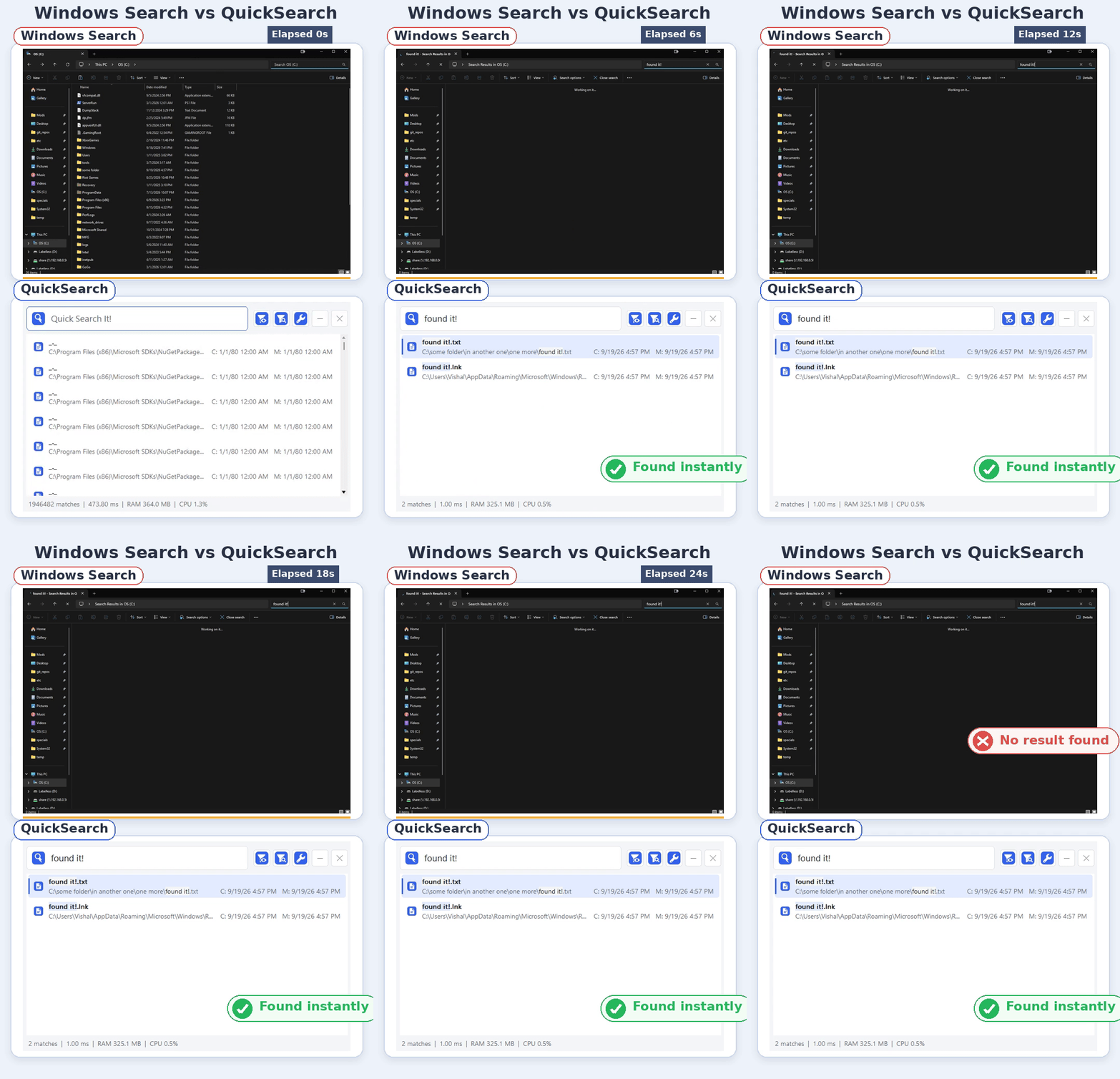
QuickSearch started with a simple frustration which is very easily displayed (and solved) on the gif to the left. Lets say I have a file called "found it!.txt". I know it exists but I cant remember where I placed it! As seen in the gif, after 30 seconds my file is still not found via Windows search! However, QuickSearch finds it in milliseconds. The scope only expanded from there. Faster and less resource extensive search results, filtering, better UI, etc, etc.
Not every search needs the same setup either. Most of the time I just want to type a file name and find it, but Windows also collects a lot of system files, caches, build output, and other junk that I usually do not care about. Filters make it easy to cut that noise out or focus a search on a specific set of folders and extensions. Profiles take that a step further by saving those setups, so I can quickly swap between a normal everyday search, development files, work folders, photos, or whatever else needs its own rules without rebuilding everything each time.
In its current form, QuickSearch is optimized to return results in milliseconds while keeping RAM allocation and CPU usage low. When it isn't being used, resource usage stays minimal. A core tenet of the application is simple: quick, accurate results without the heavy overhead. Its future goal has expanded beyond just a simple search as well. The hope is to create a full fledged file brower with many options and actions, while holding true to the tenents stated above. Oh and maybe getting the quicksearch.com domain, that would be sick.
QuickSearch is still in active development, so it can and will have issues. There are still rough edges I have not found yet, and new features may need some tuning after they are added. I'm doing what I can to improve the tool as often as I can and fix problems as they show up. If you find any bugs or want to request a feature, please click here.
User guide
To topQuickSearch is built to be easy to use whether you stay on the keyboard or use the mouse. Arrow keys can move through results and controls, most buttons have shortcuts, and Profiles make swapping between different kinds of searches quick. The search itself is fast, but Windows PCs collect plenty of system files, caches, build output, and extensions you may not care about. Search filters cut that noise down, and Profiles let you save those setups instead of rebuilding them every time.
That's all it takes to find and open a file. Most controls can still be reached without leaving the keyboard: Alt + ↑/↓ moves through results by the visible page, and Alt + ←/→ moves through search history. If the results feel crowded, remove folders or extensions you rarely need and save the setup as a Profile. Press Alt Alt again to hide QuickSearch in the background, where it uses minimal resources while waiting for your next search.
Work with a result without leaving QuickSearch or digging through File Explorer first.
Control what is allowed into the result list and remove the noise you do not want to see.
Save a complete search and visual setup, then reapply it when you need that kind of search again.
Choose how results look and which defaults QuickSearch should keep between launches.
Backend logic
To topA quick look at how QuickSearch turns what you type into results. It keeps a compact catalog of file and folder names on your PC, then searches that catalog without opening every document to read its contents.
Build a file list the first time. On later launches, reuse the saved list and catch up on changes made while QuickSearch was closed.
A ready-made directory. On the selected NTFS drive, QuickSearch reads Windows' file records, known as the Master File Table. It collects names and parent-folder links to build its own catalog.
Pick up where it left off. A saved snapshot can be brought up to date using the USN journal, Windows' record of file changes. If that snapshot cannot be safely reused, QuickSearch builds a fresh catalog.
Build lookup lists for pieces of names and file extensions. Like an index at the back of a book, they point toward possible matches.
repepoporort
Small pieces, useful shortcuts. The overlapping pieces above are called trigrams. Each points to a list of names containing it. A separate extension index handles exact extension searches such as ext:pdf.
Reuse the preparation. These lookup lists are cached too. Valid caches can use memory mapping, which lets Windows bring parts into memory as needed. QuickSearch checks those parts as they are used and can rebuild unusable caches from the catalog.
Short queries scan the names directly. Longer queries use the lookup lists to narrow the candidates, then check for the complete text you entered.
annual-report.pdf
Check fewer names. For longer queries, QuickSearch starts with the least common trigram. It can combine two candidate lists when that is likely to cut the work further. A final text check confirms each match.
Use the right amount of work. Short queries have specialized scans. Supported CPUs use AVX2 instructions to check several bytes at once. Larger searches can share work across reusable search threads; small candidate lists are handled directly.
By default, the text must occur in the file or folder's own name. Including children of matching folders is an optional setting.
Apply your file, folder, and extension filters. Draw the visible rows and build their paths when needed, keeping a long list of results manageable.
Reuse result references. The result buffer stores references to catalog entries. The virtual list draws the rows you can see, rather than creating a separate text item for every match.
Sort without holding up typing. Date ordering runs separately on a background worker. Only an ordering for the current results is applied, so an older search cannot replace a newer one.
Follow the changes. While running, QuickSearch checks the journal periodically and before a search. Creates, renames, moves, and deletions update the catalog. Small batches can update the lookup lists in place; larger or unsuitable batches rebuild them.
Reuse what is ready. The catalog stays loaded while the app runs in the background, and search workers wait for work. After changes settle, background maintenance saves updated caches and can release temporary writable index storage. This avoids repeating the full setup each time you open search.
Contact me
To topGet a hand with QuickSearch.
Or lend one to the project.Or just message me if you're bored :)